Showing posts with label FACEBOOK HACKS. Show all posts

Trick To Get Free Facebook Advertising Coupon Worth $50, ₹ 1500

Facebook Advertising
Hello everyone! Ad networks are one of the better ways for promoting Websites worldwide. Google AdWords, LinkedIn, BuySellAds, Facebook are the major ad networks where advertisers can advertise their sites, products etc. Today I’m going to tell about a trick to get free facebook advertising coupon worth $50, ₹ 1500 depending upon the country in which you are residing.
  • Login to facebook account.
  • Go to the Facebook Ads creator link by clicking here.
  • Setup your Ad.
  • After you're done creating, click on Review Ad button placed at the bottom of the page.
  • It will take you to the next page where you can see an option of Place Order.
  • Click on it, it will ask for payment method.
  • Choose Credit Card option and click on Continue.
  • Under Credit Card information, enter invalid Credit Card number with other details correct like Name, Address and then click on Submit.
Note: Don’t enter any other person's details; a better way is to interchange your own Credit Card number’s digits. 
  • It will show an error like "The authorization for this card was declined. Please verify that all card information you've provided is accurate, and try again. If you continue to experience these problems, you will have to contact your bank or card issuer to find out why the authorization was declined."
  • Repeat the whole process for 2-3 days continuously (once in a day) and wait for some days.
  • After some days, you will receive an email associated with your facebook account from Facebook Ads Team with title:

    "Get $50 in Free Advertising on Facebook" OR
    "Get Rs.1500 in Free Advertising on Facebook"
    And body:

    "Hi User,

    We noticed that you tried to create a Facebook Ad in the past. For a limited time we're offering you a #### coupon to launch your first ad for FREE!"
  • That’s all, try it today and let me know if you’ve succeeded in it.
Note: Currently I've one coupon worth Rs. 1500 expiring on 4th July, 2012. Any interested person can contact me from here.
Privacy Lost: 13 Million Facebook Users Not Using Privacy Controls

Privacy Lost: 13 Million Facebook Users Not Using Privacy Controls

This is a guest post by Robert Kirk.

Short Description: Consumer Reports recently stated that 13 million Facebook users do not utilize the site's privacy controls or are not aware of their presence.

Knowing and Unknowing Victims


Facebook is attracting more and more users each day. Sadly, while the company continues to develop sophisticated privacy controls to ensure user privacy and security, the problem lies both on the “labyrinthian-like” privacy controls that it implements and the users themselves because as many as 13 million users in the USA alone were reportedly not using or unaware of these privacy controls, thereby exposing them to a wide variety of risks. The result came from the recent investigation carried out by Consumer Reports, which was based from a survey from January 16-31 of a sample of approximately 2,000 US households with Internet connection.

The report also revealed that approximately 4.8 million people are posting personal information on the social networking website that may actually be shared beyond their personal network of friends and can be used against them by identity thefts, college admission boards, potential employers and even the IRS.

Be Careful With What You Share


Although Facebook  makes it easier for people to connect with family, friends and colleagues, it does not come with its own risks. As with any other social networking sites, Facebook collects a wide variety of details – most of which are highly sensitive –  from its users. And in order to generate much of its revenue, it shares its users data with advertisers. Some users might even be surprised to know that Facebook also receives a report every time they visit a site that features a “Like” button, regardless if they click on such button, have an account on Facebook, or are even logged in.

The report also mentioned that even those users who are vigilant about their online security are still at risk because their friends or extended network can transfer their data to other third party users by using some of the applications that are popular in the said platform.

The issue isn't only with Facebook's system alone. In fact, there are also plenty of users who are lax when it comes to managing their own online privacy. The survey found that as many as 28% of Facebook users divulge most, if not all, of their wall posts to a public audience instead of limiting such details to their personal networks.

Facebook Response


In response to the privacy and safety issues, the company's CEO, Mark Zuckerberg, said they are doing privacy access checks billions of times on a daily basis.  The company also announced that in the coming weeks or months it will provide users access to portions of its security features which include date and time of Facebook log-ins, friend requests that a user made, IP address used for every session, names that were previously used, facial recognition data, and searches and views while logged in on Facebook.

Stay Protected


Facebook may have various privacy controls in place, but most of them are difficult to understand. As such, Consumer Reports provided some tips on how users can protect themselves when using Facebook.
  • Think before you type: Even if a user deletes his or her account, there some information that can stay in Facebook's system for up to 90 days. Hence, it pays to be more careful about what you put out in public.
  • Check Facebook exposure regularly: Users should check how their page appears to others and when possible review their individual privacy settings regularly.
  • Safeguard basic details: Profile items should be set accordingly and bear in mind that sharing information with “friend of friends” is a route to expose details to other people.
  • Be on the know with what cannot be protected: Since a person's name and profile photo are public, a user can protect his or her identity by not using a photo or using one that does not show his or her face.
  • Avoid putting wall posts in public: Audience for previous wall posts should be set to just friends.
  • Turn 'tag suggest' off: If a user do not want Facebook to automatically recognize his or her face in photos, he or she could disable tag feature in the privacy setting.
  • Block apps and sites that might be collecting information: Friends and other extended network can share a user's information with apps. Hence, the user should block such app or utilize controls to limit the details that the app can see.
  • Limit wall posts to specific friends: Users do not have to share all their wall posts to friends. It would be more preferable to keep certain people from seeing particular items in their profile.
  • Deactivate: This can be a solution if a user wants his or her Facebook data temporarily inaccessible. Deleting an account, on the other, is the last resort if he or she wants to make everything inaccessible forever.

About the author:

Article written by Robert Kirk who works as a writer for RFK Print Solutions an online print company who also are an SEO Company based in Scotland RFK Solutions, they have SEO clients all over Scotland and the UK.

Facebook Trick - A Way To See Pending Friend Requests Of Your Friends

Facebook Logo
Hi everyone! Hope you all are in good health. As my final semester has ended, so from now I can’t say I’m a student :( . It was a great time with my friends, but now those days can’t be reverting back. Today I’m missing all my friends, hostel, college; those days were golden days of my life and now it seems end of the life. Well coming back to the post, today I come up with a new approach which just needs common sense to see pending friend requests of your facebook friends.

In one of my previous post, I wrote about “Unfriend Finder” which tells about pending friend requests of your own, in this post I’m telling about to see pending requests of your friends. Before continue let me clear one thing, it’s not 100% true for all cases, I will tell the reason at the end. Follow these simple steps:
  • Login to facebook.
  • First of all check whether your friends have allowed subscribers or not. If friends have allowed it, then you can see it on his/her profile as shown below:

    Subscribe Stats
Note: Learn more about Subscribers from here and if friends haven’t allowed subscribers, then this trick would not work.
  • Alternatively, if subscription list is hidden, then you can see it directly by:

    https://www.facebook.com/username/subscribedto OR https://www.facebook.com/profile.php?id=PROFILE_ID&sk=subscribedto
  • Replace username and PROFILE_ID with your friend’s username and profile_id.
  • Now you have subscriptions list as shown below:

    People to Subscribe
  • Here're two possibilities in the list, subscribe to and pending friends requests.
  • Subscriptions list contains friends to whom you have sent friend request or to whom you have actually subscribe.
Note: If you send friend request to anyone, it would be added to your subscription list (If you have allowed subscribers). So it’s a common sense to distinguish between these two possibilities. Like as shown in the last screenshot, person has either subscribed to those girls updates or has sent them friend requests; else you can make a better guess about your friends :), that’s why I wrote above that it’s not 100% true for all cases.

Have a nice day!

Facebook - Know Who Unfriended You | About Pending / Declined Friend Requests | Deactivated / Reactivated Profiles

Unfriend Finder Logo
Facebook is the leading social networking site in the world and it's era is increasing time by time. In my previous posts, I explained about about "Know Who Deleted You On Facebook" and "See Your Pending Friend Requests In Facebook", but these both posts have limited feature. So in this post, I'm gonna tell about "Know Who Unfriended You |  Pending / Declined  Friend Requests | Deactivated / Reactivated  Profiles" using Unfriend Finder. Unfriend Finder will tell you which friends have removed you, who has deactivated their accounts, people you have requested friendship with and who has declined your friend request.

Sometimes you may have noticed that list of number of your facebook friends is decreasing, the reason is either they have deleted you or deactivated/deleted their facebook profile. So do you want to know about who unfriended you |  pending / declined friend requests | deactivated/reactivated facebook profiles? Follow these simple steps:
  • Go to the Unfriend Finder download link from here.

    Note: It works in Mozilla Firefox, Google Chrome, Internet Explorer, Safari and Opera.
  • When you will go to the download page, whole procedure would be given there depending on the browser you're using like if you're browsing it from Firefox, then it would show download procedure for Firefox only and so on.
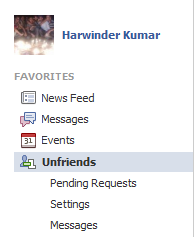
  • After installing, you will see an option "Unfriends" in left sidebar under Events as shown in screenshot:

    Unfriend Finder Tutorial
  • You can track these all activities from "Unfriends" tab next to Home button too as shown below:

    Unfriend
  • That's all.

Hide Online Chat Status In New Facebook Chat Bar From Any Particular Friend

Facebook Logo
Sometimes it happens when you don't wish to chat with a friend because of some issues, but want to stay online for all other friends. In this post, I'm gonna tell about hiding online chat status from any particular friend in new facebook chat bar, follow these simple steps:
  • In Facebook chat bar, click on Options and go to Advanced Settings...
  • Under Advanced Chat Settings:
    • Under "All your friends see you except...", Enter name of friends to whom you want to show offline (you can also include lists if you've made).

      Facebook Chat Bar
  • Click on Save.
  • That's all.
     Note: If you wish to show online to only few friends, add them in second option "Only some friends see you...".

    How To Hide Offline Facebook Friends In New Chat Bar?

    Facebook Logo
    Tired of the list of friends on the chat box of Facebook having so many of your friends who aren't actually online? I'm here gonna tell about how to hide offline Facebook friends in chat bar and showing the list of only online friends. Follow these steps:
    • Sign up here: http://apps.kynetx.com
    • After sign up & log in, go to the link: Hide Offline Friends 
    • Click on INSTALL.
    • It requires the installed Kynetx extension (depends on the browser you're using) before proceeding, install it by clicking the button.
    • After installing, you will redirect to confirmation page showing "Congratulations! Hide offline Facebook friends has been installed.".
    • That's all, here's a screenshot displaying only online friends:

      Facebook Online Friends

    Chat Trick - Check Whether Friends Are Doing Chat From Computer Or Mobile

    Gtalk - Facebook
    Hello friends!! Today I'm gonna tell about a funny chat trick. Have you ever imagined about the thing whether your friends are doing chat from computer or or mobile? Well it's not any hack, it's just common sense while doing chat with friends.
    • Start chatting with your friends.
    • While chatting, check whether first letter of sentence is capital or not?
    • If it's capital, mean friend is doing chat from mobile, whereas small letter mean doing it from computer.
    • It sounds weird, but in mostly cases it would be true, like mostly mobile's text first letter is capital by default.
    For e.g. Hey, how are you? mostly chances friend is doing chat from mobile; whereas hey, how are you? means he/she doing it from computer probably.
    • It wouldn't be 100% correct always, because your friend can also be smart like you :) & some mobile's text first letter doesn't be capital by default.

    Is A Large Friend List On Facebook Necessary And Safe?

    This is a guest post by Deanna Proach.

    In the social realm as in the business realm people seem to think more is best. While that concept works well and not so well in the real world, it is an illusion of reality on Facebook. A huge friend-list on Facebook provides people with a means to boast about their alleged popularity. However, is it necessary and even safe to have lots of people on your friend list, including those you don't even know?
    Facebook Friends

    I regret that I fell into that 'more is better' attitude when it comes to Facebook. As a result, I've accepted people who I don't even know. There has even been a few people who have known me for several years--but are not friends of mine--on my friend list. They are the nosy-type who only read my wall and browse my profile to know what is going in my life. Not because they genuinely care about me but because they want something to gossip about. I've since taken those people off my friend list.


    It has made me realize that, sadly, Facebook is a haven for malicious gossip. The more people you have on your friend list, the more vulnerable you become to gossipers and stalkers. While you shouldn't ignore everyone who wants to connect with you over Facebook, you should be cautious about who you accept onto your friend list.

    1. Browse through the person's profile. Sometimes people don't reveal much on Facebook, but others are quite liberal with their security settings. Regardless, there is always enough information there to know a little about them. The first thing you will see is their profile picture. As the saying goes, 'a picture says a thousand words'. If that person's photo raises your inner red flag, follow your intuition. Don't accept their request.

    2. It's a privilege to be listed on your friend list. Treat your Facebook profile like you're the coordinator of your own social club. Any person who wants to be on your friend list must meet certain qualifications: they must either be a close friend, an acquaintance or a person with the same goals and interests. If you so much suspect that someone on your friend list is saying nasty things behind your back, that person has lost his or her privilege and should be removed from your friend list. There is also no reason for you to keep people on your friend list who you have no desire to keep in contact with.

    It's not necessarily a bad thing to have a lot of people on your friend list and if you follow these two steps, you can be perfectly safe. That said, even if you trust the people on your friend list, you should be careful what you write on your wall and you should never ever post personal information--your full address and date of birth--on your profile. Facebook's privacy settings are easy to hack into. The last thing you want is someone to hack into your account and steal your identity.

    About the author:

    Deanna Proach is the author of Day of Revenge (Inkwater Press), a historical fiction set in revolutionary France. She also writes for discounts.ca, a website that specializes in all kinds of coupons.
    Tips To Optimizing Your Facebook Privacy

    Tips To Optimizing Your Facebook Privacy

    This is a guest post by Jennifer O.

    The world is a lot more interconnected than people seem to realize. There are far more privacy issues that people have than they would have had to deal with in the past. Facebook is a big reason for this fact. When pictures and information is uploaded onto Facebook, it can be difficult for things to stay private. It is not just about the pictures or videos that you upload yourself, but about those that your friends, or friends of your friends, upload. Say you go to a party at a friends house and someone takes pictures there. They will upload those pictures on Facebook and you might end up being tagged in them, even if you did not want to be. This can be an uncomfortable situation, especially if you do not want anyone to see those pictures.This is where the Facebook privacy settings can be so crucial. There is a lot about your Facebook profile that can be controlled. For example, you can control:
    • Who can search for you on Facebook.
    • Who can see your profile picture on Facebook.
    • Who can see your profile information on Facebook.
    • Who can see your wall on Facebook.
    • Who can access your pictures and/or videos on Facebook.
    These are crucial privacy settings and they can all be controlled by the privacy tab on your profile page. By selecting various options, you can decide if only friends of your friends can search for you, or if anyone can search for you. This way, you can protect yourself from random people adding you as a friend or from potential employers searching for you when you apply for jobs.

    Display Picture Privacy


    There are also options to decide if your display picture can be viewed. This way, if there are a lot of people with the same name, no one will be able to tell which one is you. On the flip side, you might want your picture displayed so that new friends can find you and add you on Facebook. It is all about personal preferences when it comes to privacy settings.


    Photo and Video Privacy


    Privacy in terms of videos and photos is slightly more complicated. While it is easy enough to decide who can see your photos and videos, it is harder with photos that others add. For items you have uploaded to Facebook, you can decide if you want only friends to see them, friends of friends, everyone, or no one. You can also block certain people or groups of people from seeing your pictures and/or videos. This is useful if you do not want your family, work colleagues, or certain friends to view pictures. Each album that you upload to Facebook can also have specific privacy settings.When someone tags you in a photo that they have posted, you have the option to approve or disapprove this tag before it becomes visible. These settings can be changed at any time. That way, you cannot be tagged in any picture unless you want to be. Similarly, if you are tagged in a post on someone's wall, you must approve the tagging before it becomes visible. This can prevent unpleasant surprises when you might find yourself tagged in a situation that you do not want to be involved with.


    Tag Review


    Another privacy setting is the tag review. While you can approve/disapprove being tagged in posts, you can also approve or disapprove tags that other people make on your own posts. For example, if you say something and tag a few friends, you might find a friend of yours tags someone else in that post. If you do not want this, you may simply reject the tag.


    Blocking Someone


    The final privacy setting on Facebook that can be used is the block feature. This is a feature which people rarely use, but may be relevant if someone is harassing you on Facebook, or if you just do not want to see someone's posts/status updates/messages/photos anymore. You may simply add someone's name to the blocked list. This way, they will not be able to see you, or anything you post, on Facebook and vice versa. Anyone can be blocked or unblocked at any time. Be wary that the person will in all likelihood realize that you have blocked them, so be careful when you are using this feature.

    About the author:

    Jennifer O. is a specialist in comparing car insurance and car insurance quotes. In Jennifer's free time, she enjoys helping people save money on car insurance and working out.

    How To Disable Facebook Timeline?

    Facebook Timeline
    First of all happy new year to everyone!! I pray to God for successive life of everyone & thanks for being a part of Learn The Basics Of Ethical Hacking & always stay tuned with it. With your all blessings, basicsofhacking.com is working well.

    As facebook introduced its new feature on 15th December worldwide as mentioned on facebook blog (before it, timeline feature was for developers only), since many users are getting difficulties with its layout & different look. So I'm posting about how to disable facebook timeline, follow these simple steps:

    Note:  It works only in firefox & epic, because for it you have to install a firefox add-on named User Agent Switcher.
    • Download & install User Agent Switcher add-on from here.
    • After installing & restarting firefox: Go to Tools> Default User Agent> Internet Explorer> Click on Internet Explorer 7.
    • Refresh your facebook tab now & see the changes.
      Note: There's no any permanent way for disabling facebook timeline, I posted only for yours convenience. I'm using it from last 2-3 months when it came for developers & it's just awesome.
      • For reverting back the timeline feature: Go to Tools> Internet Explorer 7> Click on Default User Agent & then refresh your facebook tab.